
Getting Started with BioDOE: A Complete Walkthrough
Part of our complete guide to DOE for biologists.
BioDOE walks you through Design of Experiments in three steps: define what you're testing, generate a run list, then analyze your results. This guide follows one real example from start to finish — screening three factors for an enzyme activity assay — using actual screenshots from the app at every step.
Step 1: Define your factors and responses
Open 1 · Factors & Responses and start with the question at the top: what are you trying to do?
- Find what matters (Screening) — you have several factors and don't yet know which ones actually move your result.
- Map the shape (Characterization) — you know your key factors and want to see if pushing further keeps helping, or if you'll overshoot.
- Find the peak (Optimization) — you want the exact combination that gets the best possible result.
For this example we're screening three factors for an enzyme activity assay: Temperature (24–37 °C), pH (6.0–8.0), and Substrate Concentration (1–10 mM). Enter how many factors you have, click Add rows, and fill in each one's name, low/high values, and unit.
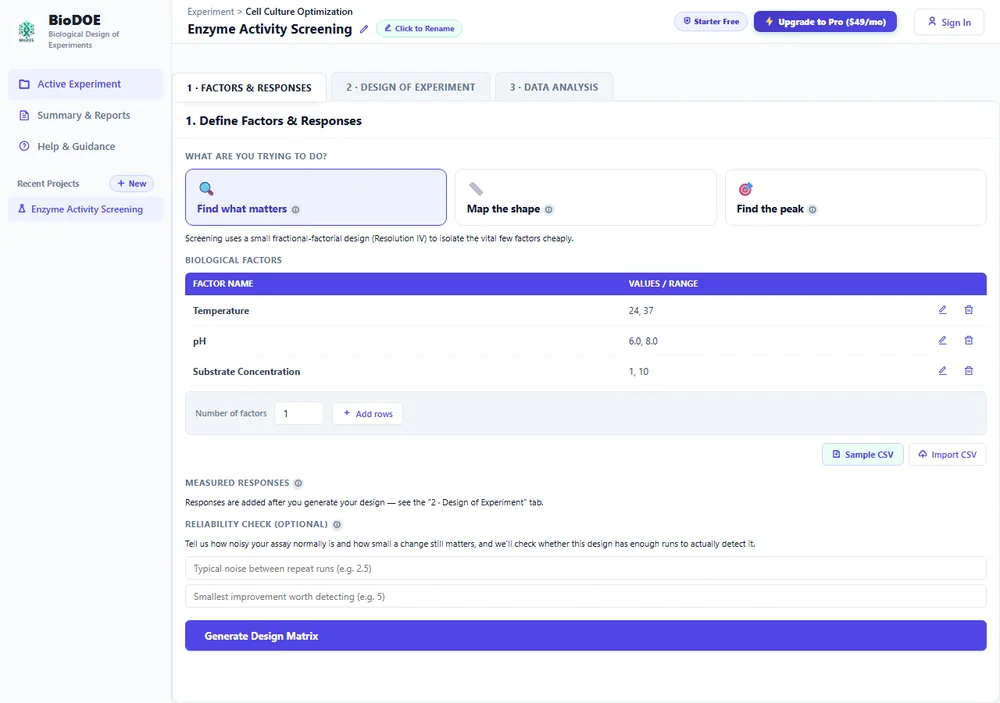
If a factor is slow or expensive to change between runs — like an incubator's temperature, or which bioreactor vessel you're using — check Hard-to-Change. BioDOE groups those runs together into a split-plot design instead of assuming every run was fully randomized, which is what actually happened on the bench.
When you're ready, click Generate Design Matrix.
Step 2: Add your responses and record results
Switch to 2 · Design of Experiment. Your generated run list is here — for three factors screened at two levels each, that's 8 runs. Enter how many responses you're measuring and click Add; each one becomes an editable column where you set a name and unit.
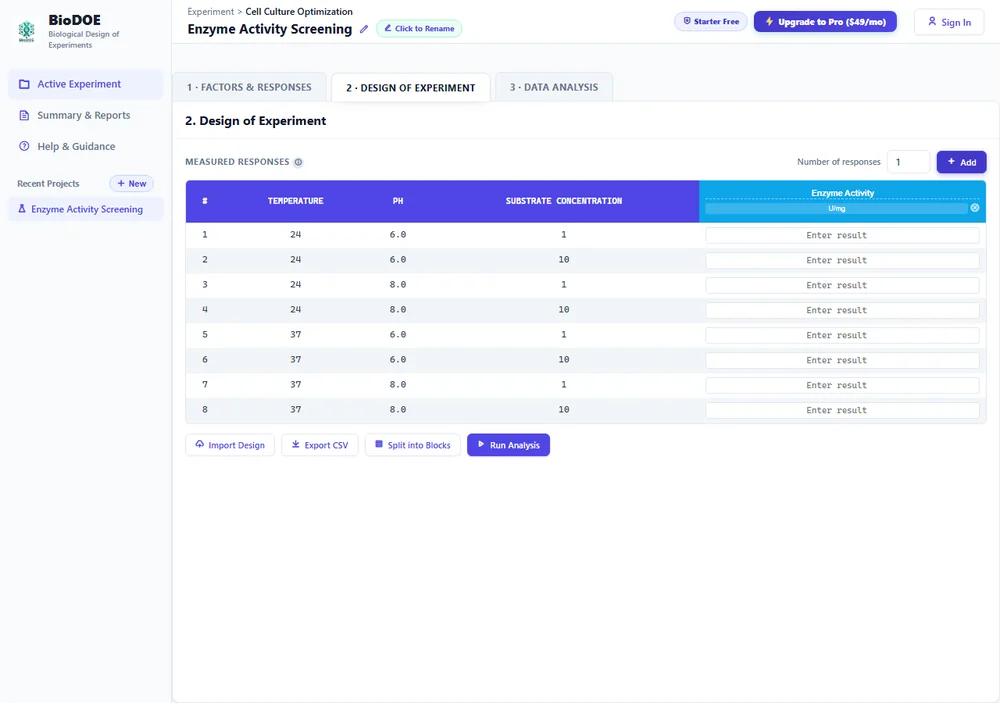
Run your experiment on the bench, then type each result into its row. A few other things live in this panel:
- Import Design / Export CSV — round-trip your matrix through a spreadsheet if that's easier for recording results.
- Split into Blocks — if the runs need to be divided across two or more people, days, or batches after you've already generated the design, this splits them into balanced blocks and accounts for that grouping in the analysis, without you having to plan for it upfront.
Step 3: Run the analysis
Click Run Analysis and switch to 3 · Data Analysis. You'll get a 3D response surface, a Pareto chart ranking each factor's effect size, an Actual vs. Predicted plot to sanity-check the model fit, and a significance table.
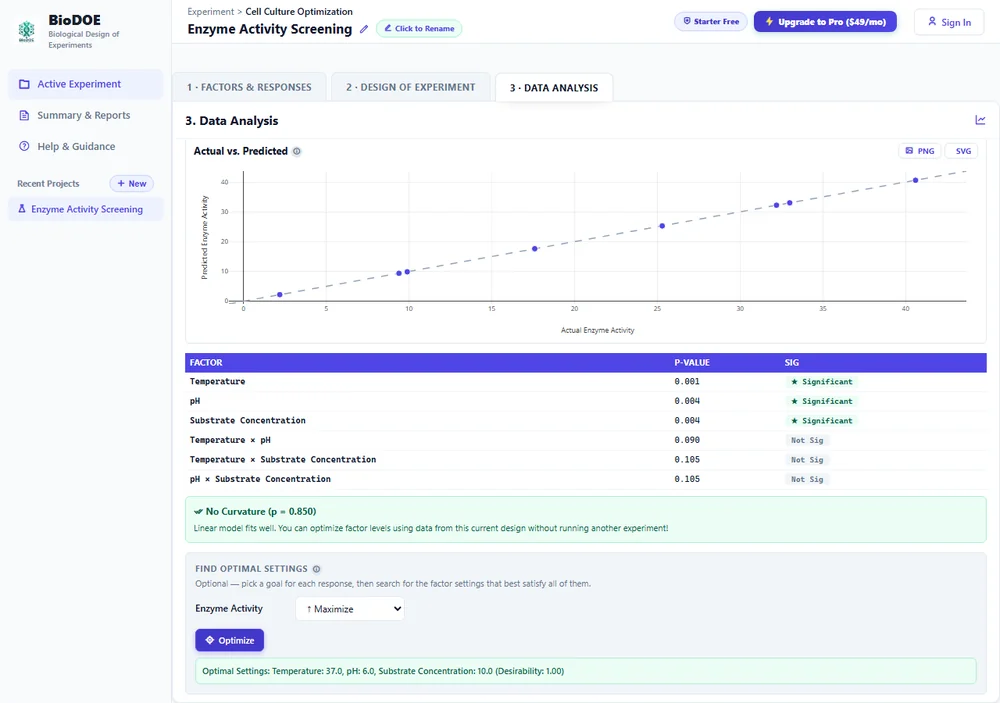
In this run, all three factors came back statistically significant (p < 0.05), and the "No Curvature" check means a straight-line model already fits well — no need to run a follow-up optimization design just to confirm that.
Step 4: Find your optimal settings
This is a separate, deliberate step from analysis — pick whether each response should be pushed as high or as low as possible, then click Optimize. BioDOE searches the fitted model, not just your raw data, for the factor settings that best satisfy every response at once. That matters because the real optimum often sits beyond the single best run you happened to test.
For this example, maximizing Enzyme Activity pointed to Temperature: 37.0 °C, pH: 6.0, Substrate Concentration: 10.0 mM — the edge of the tested range in every direction, which is itself a useful result: it's a signal worth re-centering your next design around, rather than assuming you've found the true peak.
What's next
That's the core loop: define, generate, analyze, optimize. A few things worth knowing as you go further:
- Reliability Check (Panel 1, optional) tells you upfront whether your planned design has enough runs to detect a real effect, given how noisy your assay normally is.
- Curvature detected in your analysis means a straight-line model isn't enough — BioDOE will offer to augment your design into a full Response Surface (CCD) instead of making you start over.
- Screening and Characterization designs, full statistical analysis, and CSV/figure export are all available on the free Starter plan. Optimization designs, Hard-to-Change (split-plot) support, and the optimizer shown above are part of Pro.
If you get stuck, the Help & Guidance link in the sidebar has a quick reference, or reach out at info@biodoe.com.